How to See Parent (Upper) Folders on a Mac: A Visual Finder Guide
To see what is inside a folder on a Mac, open Finder and double-click the folder. For a clearer view of nested folders, switch to List or Column view. You can also show the sidebar and the path bar so you can see both your files and where they live. No Terminal commands are needed.
This guide uses a fictional person, Deniz, and a fictional Weekend Project folder. The images are labelled, simplified Finder mockups created for this tutorial—not screenshots of a real person’s files. The exact appearance and wording can vary with your macOS version and language.
Start here: open a folder visually
- Click the blue smiling Finder icon in the Dock.
- Choose a location such as Documents or Downloads in the left sidebar.
- Double-click a folder to open it. Double-click another folder inside it to go deeper.
Clicking a folder once normally selects it in Icon or List view; it does not open it. In Column view, a single click on a folder shows its contents in the next column. Apple’s Finder overview explains the available views.
A hypothetical example: finding a photo in a project
Imagine Deniz has saved this collection in Documents:
Documents
└── Weekend Project
    ├── Photos
    │   └── Garden.jpg
    ├── Exports
    │   └── Review.csv
    └── Notes.txt
Deniz wants to see the project’s contents and find Garden.jpg. There are two useful approaches: expand the folders in a list, or follow them across columns.
Option 1: expand folders in List view
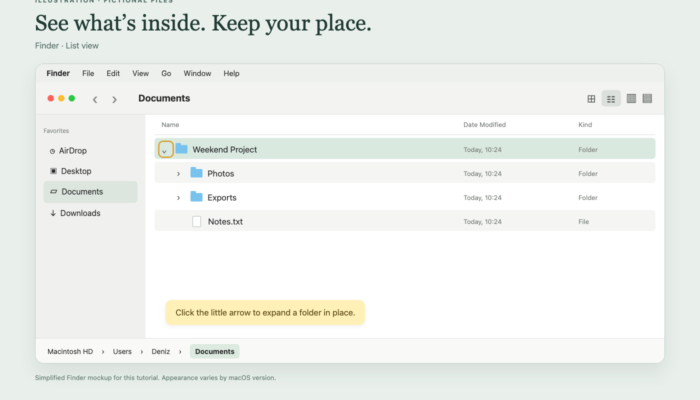
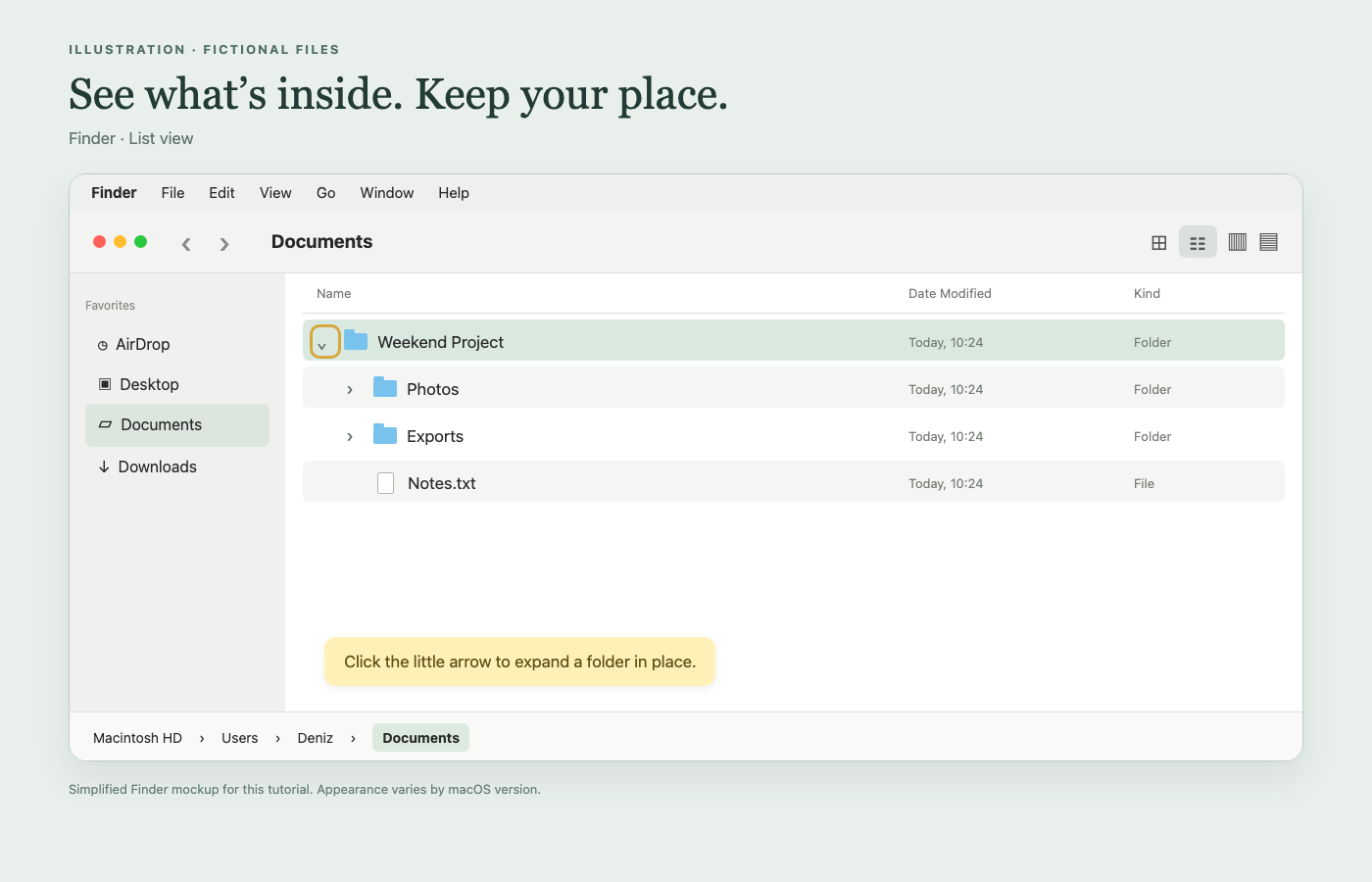
In Finder’s menu bar, choose View → as List, or click the List view button in the window’s toolbar. If the view buttons are tucked into a menu, widen the window.
- Find Weekend Project in Documents.
- Click the small arrow beside its name. Its contents appear underneath, indented.
- Click the arrow beside Photos to reveal Garden.jpg.
- Click the arrow again to collapse that folder.
The arrow expands the folder inside the current list. Double-clicking the folder opens it as the window’s location instead. This distinction is handy when you want to compare several folders without losing your place.
Option 2: follow the folder structure in Column view
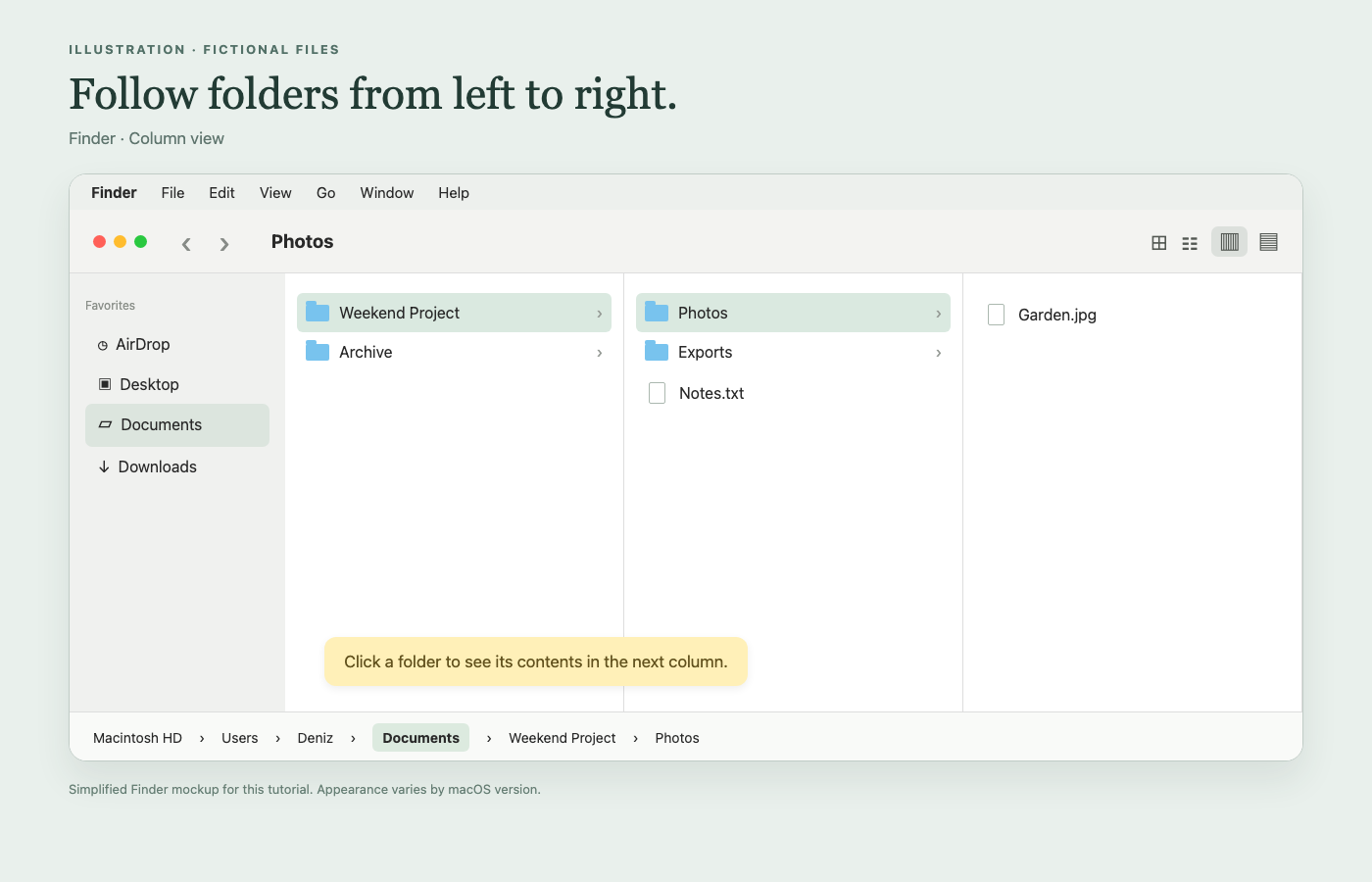
Choose View → as Columns. Click Weekend Project, then Photos. Each selection opens another level to the right, making the relationship between the folders easier to follow.
For our example, you can see the project, its Photos folder, and Garden.jpg across adjacent columns. This is a useful choice when your main question is “Which folder am I inside?” See Apple’s guide to Finder views.
Show the sidebar and the folder path
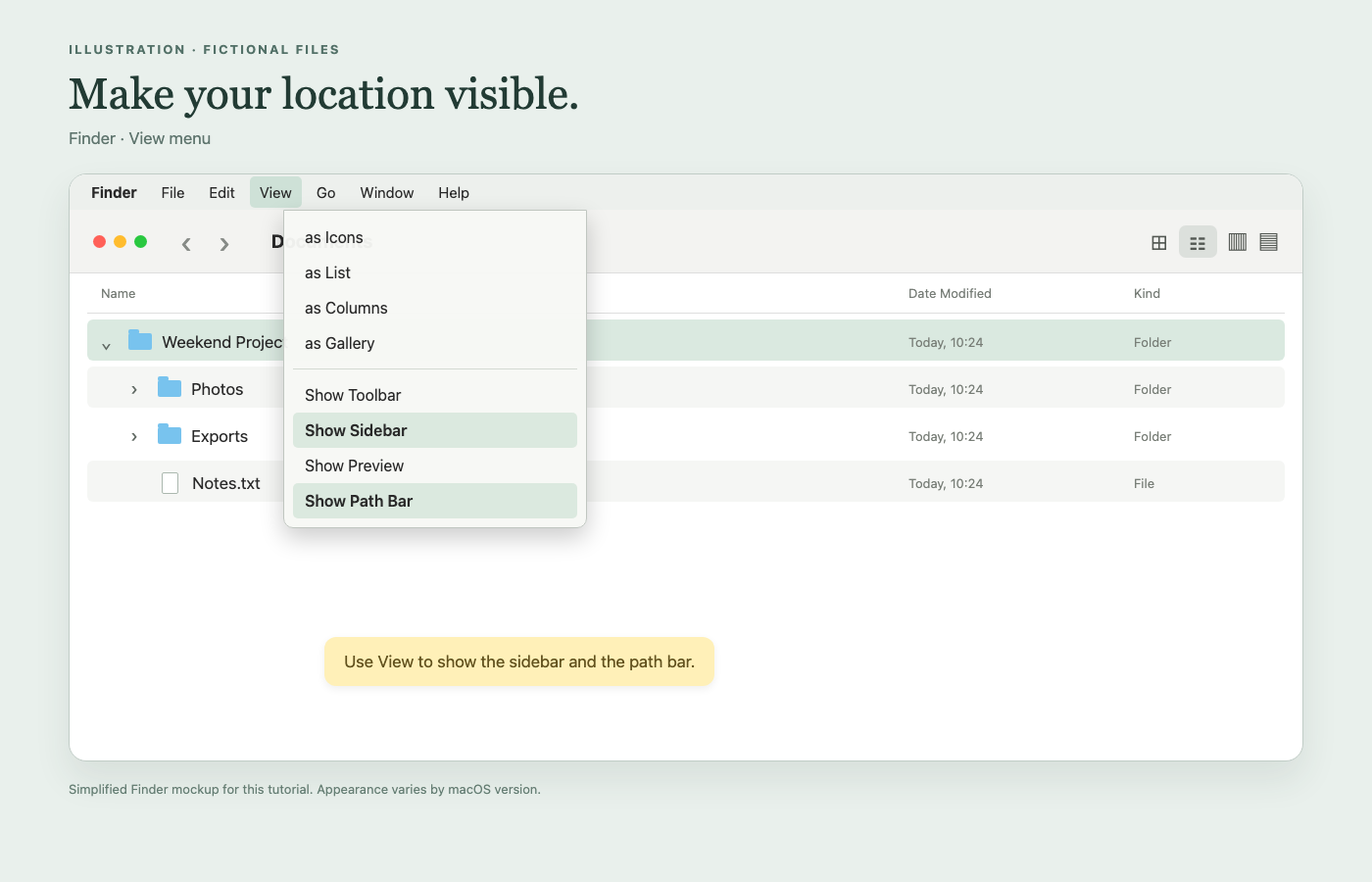
First click the Finder window. The menus you need appear at the top of the Mac screen, rather than inside the file list.
- View → Show Sidebar brings back the shortcuts on the left. If that option is unavailable, choose View → Show Toolbar first.
- View → Show Path Bar displays the chain of folders near the bottom of the window. Double-click a parent folder there to open it.
If the menu says Hide Sidebar or Hide Path Bar, that feature is already enabled. Apple documents the sidebar controls and path bar.
Which view should I use?
| View | Useful when you want to… |
|---|---|
| Icons | Recognize pictures or files by their thumbnails. |
| List | Read names and details, or expand several folders in one list. |
| Columns | Follow a chain of nested folders. |
| Gallery | Browse files with a large preview. |
Changing the view changes the presentation; it does not move your files. You can switch views whenever another layout would make the folder easier to understand.
Frequently asked questions
How do I go up one folder with the mouse?
Choose Go → Enclosing Folder in the top menu bar. From Photos in our example, this takes you to Weekend Project. The keyboard alternative is Command + Up Arrow. See Apple’s Finder navigation guide.
Is the Back arrow the same thing?
No. Back follows your browsing history; Enclosing Folder follows the folder hierarchy. If you jumped from Downloads directly into Photos, Back could return to Downloads, while Enclosing Folder would open Weekend Project.
Why is the little arrow beside a folder missing?
First check that you are using List view. The expandable list shown in this guide is not the Icon or Gallery layout. Double-clicking the folder remains a simple way to open it.
How do I preview a file without opening its app?
Select the file and press Space for Quick Look. For a preview that stays beside the file list, choose View → Show Preview. Preview support depends on the file type.
What if someone gives me a folder path?
Choose Go → Go to Folder, paste the path, and open the matching location. You are still using Finder’s graphical interface. A path beginning with ~/ starts in your home folder.
Why does Recents show files from different places?
Recents is a collection of recently accessed files, not one project directory. Choose Documents, Downloads, or your project’s actual folder when you want to browse its structure.
Are keyboard shortcuts required?
No. The main steps above use menus, buttons, and the mouse or trackpad. Optional shortcuts are Command + 1 for Icons, Command + 2 for List, Command + 3 for Columns, and Command + 4 for Gallery. Apple maintains a Mac keyboard shortcut reference.
For an easy starting setup, try List view + Sidebar + Path Bar. Switch to Columns when following nested folders becomes more important than seeing file details.